How to Access Detailed Wi-Fi Information on Mac: A Comprehensive Guide
Learn to easily find your Mac's detailed Wi-Fi information, including signal strength, BSSID, channel, and security type, for troubleshooting and network analysis.
What You'll Need
- mac Wi-Fi information
- macOS Wi-Fi details
- check Wi-Fi signal strength Mac
- Mac wireless network analysis
- Mac network diagnostics
- view Wi-Fi info macOS menu bar
- Mac Wi-Fi channel information
- Mac wireless security type
- Mac BSSID location
- Mac IP address Wi-Fi
- how to check wifi signal strength on mac
- where to find detailed wifi info on mac
- macOS show advanced wifi information menu bar
- get current wifi channel mac os x
- check wifi speed and quality mac
Your Mac's Wi-Fi connection often works flawlessly, but when issues arise – slow speeds, frequent disconnections, or a weak signal – having access to detailed network information can be a game-changer. This guide will show you how to quickly pull up a wealth of hidden Wi-Fi diagnostics directly from your macOS menu bar, providing crucial data for troubleshooting and optimizing your wireless setup. No need for complex commands or third-party apps; your Mac has everything you need built right in.
Understand Why You Need Detailed Mac Wi-Fi Information
Before diving into the 'how,' it's helpful to understand the 'why.' Accessing detailed Wi-Fi information isn't just for tech enthusiasts; it's a powerful tool for anyone experiencing network issues or wanting to optimize their connection. This data can help you:
- Pinpoint Network Diagnostics: Quickly identify if a slow connection is due to poor signal strength, channel interference, or an issue with your router.
- Evaluate Signal Strength and Interference: Understand the quality of your wireless connection and detect if other devices or networks are causing interference.
- Verify Network Specifics: Confirm you're connected to the correct network, check the security type, and identify your router's unique identifier for advanced setup or security audits.
Accessing Detailed Wi-Fi Information via the Menu Bar
The quickest way to reveal advanced Wi-Fi data on your Mac is through a simple keyboard shortcut combined with a click on the Wi-Fi icon in your menu bar. This method significantly expands the information usually shown.
1. Locate the Wi-Fi Icon: Look for the Wi-Fi symbol (usually a radiating arc) in the top-right corner of your Mac's menu bar.
2. Press and Hold `Option`: On your keyboard, press and hold down the `Option` (or `Alt`) key.
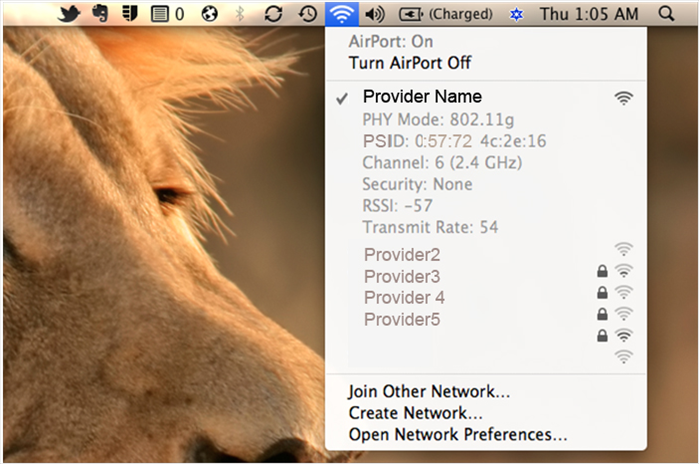
3. Click the Wi-Fi Icon: While still holding the `Option` key, click the Wi-Fi icon in the menu bar. You'll notice the standard Wi-Fi menu expands to show a lot more technical details.
Take a screenshot of this detailed menu if you're troubleshooting with someone else or need to reference the information later. Press `Shift` + `Command` + `4`, then drag to select the menu.
Interpreting Your Mac's Wi-Fi Details
Once you've opened the detailed Wi-Fi menu, you'll see a list of technical terms. Here's what some of the most important ones mean:
- IP Address & Router: Your Mac's unique address on the local network (IP Address) and the address of your Wi-Fi router (Router).
- BSSID: The Basic Service Set Identifier. This is the unique hardware address (MAC address) of the wireless access point or router you are currently connected to. Useful for identifying specific access points in environments with multiple Wi-Fi extenders or mesh networks.
- Channel: The frequency band (e.g., 2.4 GHz or 5 GHz) and specific channel number your Wi-Fi is using. High channel numbers generally indicate a 5 GHz connection. Interference can occur if many nearby networks use the same channel.
- RSSI (Received Signal Strength Indication): This measures the strength of the Wi-Fi signal your Mac is receiving, expressed in decibels (dBm). Closer to 0 is better (e.g., -40 dBm is excellent, -70 dBm is fair, -80 dBm is poor).
- Noise: The level of background interference detected by your Mac, also in dBm. A higher negative number here is better (e.g., -90 dBm is good, -60 dBm is bad).
- Tx Rate (Transmit Rate): The current speed (in Mbps) at which your Mac is sending data to the Wi-Fi router. This can fluctuate based on signal quality and network congestion.
- PHY Mode: The Wi-Fi standard your connection is using (e.g., 802.11ac, 802.11n, 802.11ax/Wi-Fi 6). Higher standards offer faster potential speeds.
- Security: The type of encryption your Wi-Fi network uses (e.g., WPA2 Personal, WPA3 Personal). This is crucial for network security.
Using Wi-Fi Information for Troubleshooting and Optimization
Now that you understand the data, here's how to use it to resolve common Wi-Fi problems:
- Weak Signal: If your RSSI is consistently -75 dBm or lower, you're likely experiencing a weak signal. Try moving closer to your router or considering a Wi-Fi extender.
- High Interference: A Noise level closer to -60 dBm (or higher) indicates significant interference. Check your Channel. If many surrounding networks are on the same channel, you might improve performance by changing your router's channel settings (this usually requires logging into your router's administration page).
- Slow Speeds: A low Tx Rate could be a symptom of a weak signal, high noise, or an older PHY Mode. Ensure your Mac and router support the latest Wi-Fi standards for optimal speed.
- Verify Connection: Check the BSSID to ensure you're connected to the intended access point, especially in larger homes or offices with multiple routers or extenders. Confirm the Security type matches your network's settings to avoid insecure connections.
Beyond the Menu Bar: Wireless Diagnostics Tool
For deeper analysis, macOS includes a powerful utility called Wireless Diagnostics. This tool can monitor your Wi-Fi connection, detect common issues, and even provide recommendations.
- When to Use It: Use Wireless Diagnostics when the basic menu bar information isn't enough to solve your problem, or if you want a detailed report of your network environment.
- How to Access It: Just like before, hold down the `Option` key and click the Wi-Fi icon in the menu bar. This time, select 'Open Wireless Diagnostics...' from the expanded menu.
- Capabilities: The tool can perform a scan of your environment, monitor your connection over time, and generate a comprehensive report that can be helpful for advanced troubleshooting or sharing with support staff.
Running Wireless Diagnostics will temporarily disconnect your internet. Ensure you save any ongoing work before proceeding.
By understanding and utilizing these detailed Wi-Fi metrics, you gain greater control over your Mac's network performance. Whether you're troubleshooting a persistent issue or simply curious about your connection quality, the information is readily available right from your menu bar. Take advantage of these built-in tools to keep your Wi-Fi running smoothly.